

|
Call Report Context Menu Location: Main Window -> Calls Report -> Context Menu |
Top Contents Index |
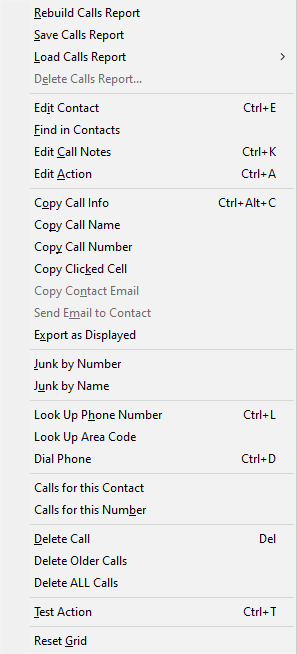
This menu shows the commands available for a call. Different menu items are enabled depending on the call selected.
This menu is similar to the Call List context menu. However, this menu adds Rebuild Calls Report when the report is out of date.
Generates the calls report using the latest calls. This item only appears when the report is out of date. |
|
Save Calls Report |
Saves the current call report configuration for easy access. |
Load Calls Report |
Loads a standard call report configuration or a user-defined one. |
Delete Calls Report... |
Opens a window to delete a user-defined call report. |
|
|
Add to Contacts |
Adds the caller to the Contact list. The Edit Contact window will be opened so you fill in fields and set the action, if desired. If the caller is already in the Contact list, Edit Contact will be displayed instead. |
Add Number to Existing Contact |
Opens the Select Contact window so you can choose an existing contact to receive the phone number. |
Find in Contacts |
Switches to the Contact list and selects the contact for this call. |
Edit Call Notes |
Opens the Edit Call window where you can edit the notes for the call. |
Edit Action |
Opens the Edit Action window for the action associated with the call. |
|
|
Mark as Read |
Sets the "New" value for the call to "No", or unchecked. |
Mark as New |
Sets the "New" value for the call to "New", or checked. |
Mark All as Read |
Sets the "New" value for all calls to "No", or unchecked. If you do this before leaving your home, you can quickly tell how many calls came in while you were away by reading the "New Calls" status on the display panel. |
|
|
Copy Call Info |
Copies the call information to the clipboard, so you can paste it into another program. |
Copy Call Name |
Copies just the caller's name to the clipboard. |
Copy Call Number |
Copies just the caller's phone number to the clipboard. |
Copy Clicked Cell |
Copies the contents of the grid cell that was clicked to the clipboard. |
Copy Contact Email |
Copies the email address of the contact to the clipboard. This command is disabled if the contact does not specify an email address. This command is hidden if the call is not associated with a contact. |
Send Email to Contact |
Opens your email program and starts an email to the contact. This command is disabled if the contact does not specify an email address. This command is hidden if the call is not associated with a contact. |
Export as Displayed |
Exports the call report with only the fields currently displayed. |
The following items will be disabled if the selected call does not include a phone number:
Look Up Phone Number |
Searches for the phone number of the selected call on the internet, using the URL specified in General Options. The search will open in your browser. This requires internet access. Note that many or most phone numbers will not be found. |
Look Up Area Code |
Searches for the area code of the selected call on the internet, using the URL specified in General Options. The search will open in your browser. This requires internet access. This may be useful if Look Up Phone Number could not find the phone number. |
Dial Phone |
Uses Windows' dialer to dial the selected phone number. This will probably fail if you have not configured your dialing settings in Windows. To configure the dialing settings in Windows XP, open the Windows Control Panel. If the right-hand pane of the Control Panel says "Pick a category", click on "Switch to Classic View" in the left pane. Then double-click the "Phone and Modem Options" control panel. Fill out the form and click OK. Click OK again to close the control panel. Other versions of Windows can be similarly configured. If this option is disabled, then there is no phone number associated with the call, or dialing has failed once already. If you configured Windows' dialing settings, restart Ascendis Caller ID so it will try dialing again. |
|
|
Calls for this Contact |
Opens a window with a list of calls associated with this contact. This command is hidden if the call is not associated with a contact. |
Calls for this Number |
Opens a window with a list of calls associated with this phone number. |
|
|
Delete Call |
Deletes the selected call. You will be prompted for confirmation first. |
Delete Older Calls |
Deletes all calls older than the selected call. Please make a backup first, as deleted calls cannot be recovered. |
Delete ALL Calls |
Deletes all the calls in the Call list, even those that don't appear in the report. You will be prompted for confirmation first. All your calls will be permanently deleted. Please use this with caution as we cannot restore your calls once they are deleted!
|
|
|
Test Action |
Performs the action associated with the selected call. |
|
|
Reset Grid |
Resets the columns in the grid to the state when Ascendis Caller ID was first installed. This includes the columns displayed, their positions, and widths. This is not undoable, and no warning is provided. |
If you select multiple calls (by holding the Control key while clicking on additional calls, or by shift-clicking) then fewer commands will be available.
| Send comments or questions about web site to webmaster@ascendis.com |
Modified January 17, 2024, 3:44 pm
|