

|
Options (Device, Whozz Calling?) |
Top Previous Next Contents Index |
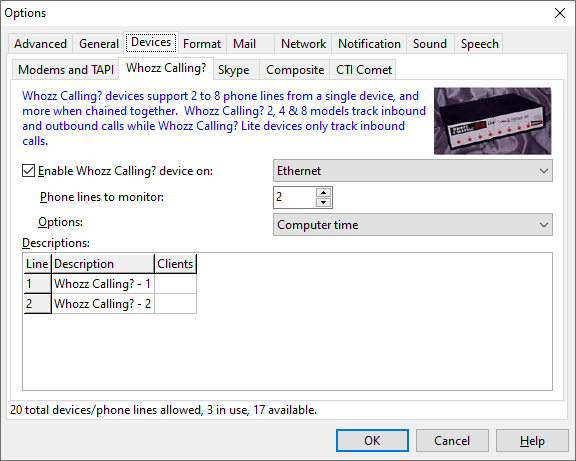
This page specifies whether a Whozz Calling? device is to be used, and its configuration.
Whozz Calling? devices are caller id monitoring devices manufactured by CallerID.com. They sell a range of devices that monitor from two to eight phone lines. Some of their serial devices can be daisy-chained together to monitor up to 56 phone lines on one serial port. Some can connect over a Local Area Network, so they don't have to sit near a computer.
Ascendis Caller ID supports the following Whozz Calling? devices in both serial and "Ethernet Link" varieties:
Whozz Calling? devices report caller information more reliably than most modems, and are much easier to install and use for multi-line environments. They cannot play or record sounds over the phone, and most cannot hang up the phone.
Configure the Whozz Calling? device with the following controls:
Enable Whozz Calling? device on: |
Enables or disables Whozz Calling? device support and specifies the COM (or serial) port to which the device is connected, or "Ethernet" if using an Ethernet Link model. For serial devices, you can usually track the serial cable from the Whozz Calling? device to the back of the computer to find the port number. Most computers label serial ports with "IOIOI" and a "1" or "2". These correspond to COM1 and COM2, respectively.
If using a USB-to-serial converter, the port number may be difficult to determine. You can try the first serial port, click OK to close the Options window, and see whether calls are detected. (A shortcut is to use the Line Monitor to see whether Ascendis Caller ID was able to communicate with the device.) If not, select the next serial port and try again. If the desired COM port doesn't appear, select "Scan for ports > COMxx". This may be required for computers with high-numbered COM ports, which can happen when multiple USB-to-serial converters are or have been used.
To scan again for Whozz Calling? Ethernet Link devices, choose "Scan for Ethernet Link devices". This is useful if the device was added to the network after Ascendis Caller ID was started.
If using a Whozz Calling? Ethernet Link device and an "Ethernet: nnn.nnn.nnn.nnn" option appears, we recommend choosing it. In this case Ascendis Caller ID can talk directly to the device instead of broadcasting, which will reduce network traffic for other network devices. If "Ethernet" is chosen, Ascendis Caller ID will broadcast the commands and they will be received by all devices on the same subnet. If multiple Whozz Calling? Ethernet Link devices are present, this means Ascendis Caller ID will not be able to configure any of them since attempting to configure one will affect them all.
If your network contains multiple Whozz Calling? Ethernet Link devices and you only want to process calls from one of them, you must choose the correct "Ethernet: nnn.nnn.nnn.nnn" option. Otherwise Ascendis Caller ID will attempt to process calls from all Whozz Calling? Ethernet Link devices on the network. If no "Ethernet: nnn.nnn.nnn.nnn" options are listed, or the one you want is not listed, your Whozz Calling? Ethernet Link device may not be on the same subnet. Please consult your device manual for changing the IP address of your Whozz Calling? Ethernet Link device. |
Phone lines to monitor |
Specifies the number of phone lines (connected to the Whozz Calling? device) to monitor. Depending on your license, you may be able to monitor more or fewer phone lines than the device is actually capable of. |
Options |
This drop-down checklist box lets you configure the following settings: |
Enable distinctive ring reporting |
Tells Ascendis Caller ID to track the ring type of incoming calls. When enabled, specify multiple descriptions for each line, separated by the "pipe" character, like so: Home | Business | Fax |
Suppress first ring |
Enables or disables first ring suppression for Whozz Calling? devices that support it. (See the CallerID.com Feature Matrix for device capabilities.) First ring suppression prevents the first ring for each phone call, giving Ascendis Caller ID a chance to determine who's calling, and block the call if so configured, without making you hear the first ring. Please see your Whozz Calling? device manual for instructions on connecting your phone lines to support first ring suppression. |
Prefer computer time |
When checked, the date and time of the computer will be used to timestamp calls. When not checked, the data and time reported by the Whozz Calling? device will be used. |
When checked, Ascendis Caller ID will attempt to download calls in the memory of the Whozz Calling? device when Ascendis Caller ID starts. Some Whozz Calling? devices, such as the Whozz Calling? 2, retain recent calls in memory until erased or overwritten with new calls, even when the computer is off. Ascendis Caller ID clears the device memory during program shutdown to avoid downloading calls it already processed. However, under some circumstances Ascendis Caller ID may not be able to clear the device memory, causing duplicate calls to appear in the Call list the next time Ascendis Caller ID starts. To avoid this, disable this option.
When disabled, Ascendis Caller ID will not download calls from the device memory during program startup, nor clear the device memory during program shutdown. |
|
Descriptions |
Descriptions are displayed in various locations (such as the Call list and notification popup) when 'Show "Line" column in Call list' is enabled on the General Options page. If you have multiple phone lines this can be useful for distinguishing between them. You can change each description to anything you want, such as the phone number of the monitored phone line, or perhaps "Home" for one and "Business" for another. |
Clients |
Specifies the IP addresses of network clients to receive calls for this line of this device. If this is blank, all network clients will receive all calls. Otherwise list the IP addresses of clients to receive calls for this line, separated by semicolons. Examples: 192.168.0.5 192.168.0.5;192.168.0.6 Ranges are not supported -- each IP address must be listed, or none. |
The OK button saves any changes you made to the properties and closes the window. The Cancel button closes the window without saving changes. The Help button brings up this topic in the help file.
| Send comments or questions about web site to webmaster@ascendis.com |
Modified January 17, 2024, 3:45 pm
|