

|
Find Contacts |
Top Previous Next Contents Index |
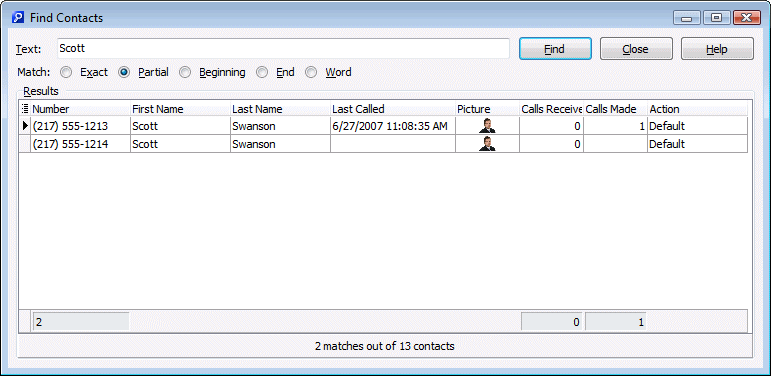
The Find Contacts window makes it easy to find specific contacts. Note that all searches are case-insensitive.
Text |
Enter the text you want to find |
Match |
Select one of the match options: |
Exact |
The text specified must exactly match a field in the contact. For example, searching for "out of", the contact "out of area" will not match. |
Partial |
The text specified must be found within a field in the contact. For example, searching for "out of", the contact "out of area" will match. |
Beginning |
The text specified must be found at the start of a field in the contact. For example, searching for "12", contacts with phone number "(800) 555-1212" will not match, but contacts with phone number "800" will match. |
End |
The text specified must be found at the end of a field in the contact. For example, searching for "12", contacts with the phone number "(800) 555-1212" will match. |
Word |
The text specified must match a whole word. For example, searching for "are" will not match "Out of Area". |
Find |
Start the search |
Close |
Close the window |
Help |
Bring up this help topic |
Double-click on a result row to open the Edit Contact window.
The result list can be altered using the common grid controls.
Note: Searching is performed across many fields. When records are found unexpectedly, consider that a match may have been found in a field not currently displayed. You can display other fields using the column selection widget.
| Send comments or questions about web site to webmaster@ascendis.com |
Modified January 17, 2024, 3:46 pm
|