

|
Auto Import Contacts Location: File Menu -> Import -> Auto Import Contacts |
Top Contents Index |
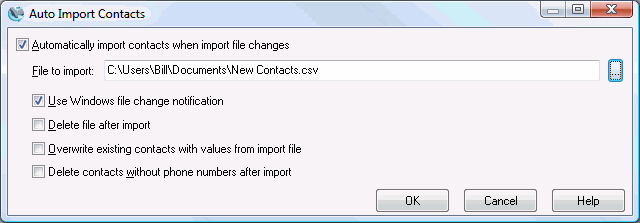
The Auto Import Contacts window lets you configure Ascendis Caller ID to automatically import contacts from a file every time it changes. This is useful when using Ascendis Caller ID with another system that maintains its own contact list.
(For more information on importing, please see the Import Command topic or the Importing and Exporting topic.)
Automatically import contacts when import file changes |
Determines whether automatic importing is enabled (checked) or disabled (not checked). |
File to import |
The full name and path of the file to import. |
Use Windows file change notification |
When checked, Ascendis Caller ID relies on Windows to tell it when the file has changed. Normally this is the best method. However, Windows may not notice file changes on network drives. In this case, uncheck the option, and Ascendis Caller ID will periodically check the file to see whether the modification date has changed. |
Delete file after import |
When checked, the import file will be deleted after importing. This may be convenient when the import file is automatically generated by another program, but it is not required, as the program can just overwrite an existing file. Please be careful when using this option. In general this should not be enabled unless the import file is generated automatically or is a copy of another file. |
Overwrite existing contacts with values from import file |
Normally existing contacts are not changed during import. When checked, existing contacts will be overwritten with contact information in the import file when Ascendis Caller ID can match contacts in the import file to existing contacts. Ascendis Caller ID uses the contact's first and last name and company for matching. It does not use the phone number since contacts can have multiple phone numbers. |
Delete contacts without phone numbers after import |
Ascendis Caller ID allows contacts without phone numbers. When importing contacts, if a phone number for an imported contact was already assigned to an existing contact, the phone number will be transferred to the new contact. It the existing contact had no other phone numbers assigned, it will then have no phone numbers. This is allowed and is not a problem for Ascendis Caller ID. However, depending on your reasons for importing, you may not want the old contact around. Enable this to remove all contacts with no phone numbers assigned after the import. Please note that this will delete all contacts with no phone numbers, not just those impacted by the import. |
|
|
OK |
Saves all changes and closes the window. If the import file is new it will be imported immediately. |
Cancel |
Discards all changes and closes the window. |
Help |
Brings up this topic. |
| Send comments or questions about web site to webmaster@ascendis.com |
Modified January 17, 2024, 3:44 pm
|