

|
Options (Speech) Location: View Menu -> Options |
Top Previous Next Contents Index |
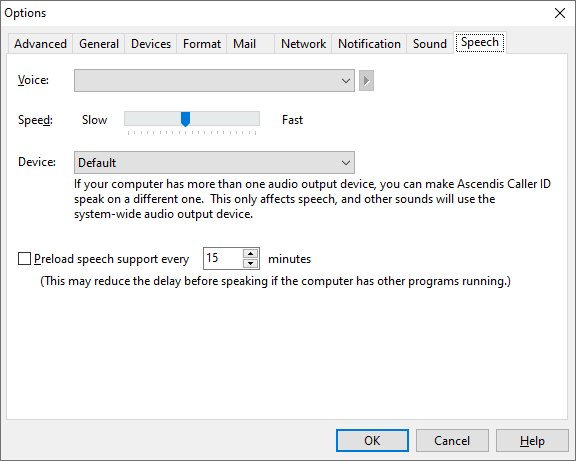
The Speech page of the Options window lets you change the following:
Voice |
The voice Ascendis Caller ID will use when speaking. You can hear a sample of the voice by clicking the play button ( |
Speed |
Specifies the rate at which Ascendis Caller ID speaks. Move the control to the left (towards "Slow") to make it speak more slowly, or to the right (towards "Fast") to make it speak more quickly. The Play button (next to the voice selection) will reflect the selected speed setting. |
Device |
Specifies the device to use for speech. Most users should leave this at "Default". If you have multiple sound devices and want speech to use a different device than the default audio output device on your computer, choose it here. |
Preload speech support every ___ minutes |
Enabling this may decrease the time between the phone ringing and Ascendis Caller ID speaking. A fast computer running no other programs and with power management disabled will probably not benefit. You will have to experiment to determine the most effective setting. Note that this will inhibit the computers ability to sleep, if power management is enabled. |

The OK button saves any changes you made to the settings and closes the window. The Cancel button closes the window without saving changes. The Help button brings up this topic in the help file.
| Send comments or questions about web site to webmaster@ascendis.com |
Modified January 17, 2024, 3:48 pm
|